

Digital and Phone Declutter Checklist (Free Printable)
Your junk drawer is visible. You walk past it, you feel the guilt, you eventually deal with it. A digital declutter checklist tackles the mess you can’t see: the 4,000 photos, the 12 open browser tabs, the inbox with a number so high you’ve stopped reading it. That invisible pile is the one quietly draining your battery and your attention. Here’s the fix, step by step, plus a free printable so you can check boxes instead of guessing.
We’ll go phone-first, because that’s where most of the clutter actually lives. Grab your phone. That’s the only tool you need to start.

Why a Digital Declutter Checklist Beats Winging It
Winging it is why your phone is full again. You delete a few apps in a burst of motivation, feel great, and three weeks later you’re back to a red badge on every icon. A checklist turns a vague good intention into a set of small, finishable tasks. You do number one. You do number two. You stop when the timer goes off.
The other reason a list wins: digital clutter has no natural stopping point. A closet fills up and then it’s physically full. Your cloud storage just keeps taking more. So the goal isn’t to reach “empty,” it’s to build a repeatable pass you can run again next month. We handle that with the maintenance cadence near the end (daily, weekly, quarterly), which is the piece most guides skip.
The Digital Declutter 3-Layer Sweep
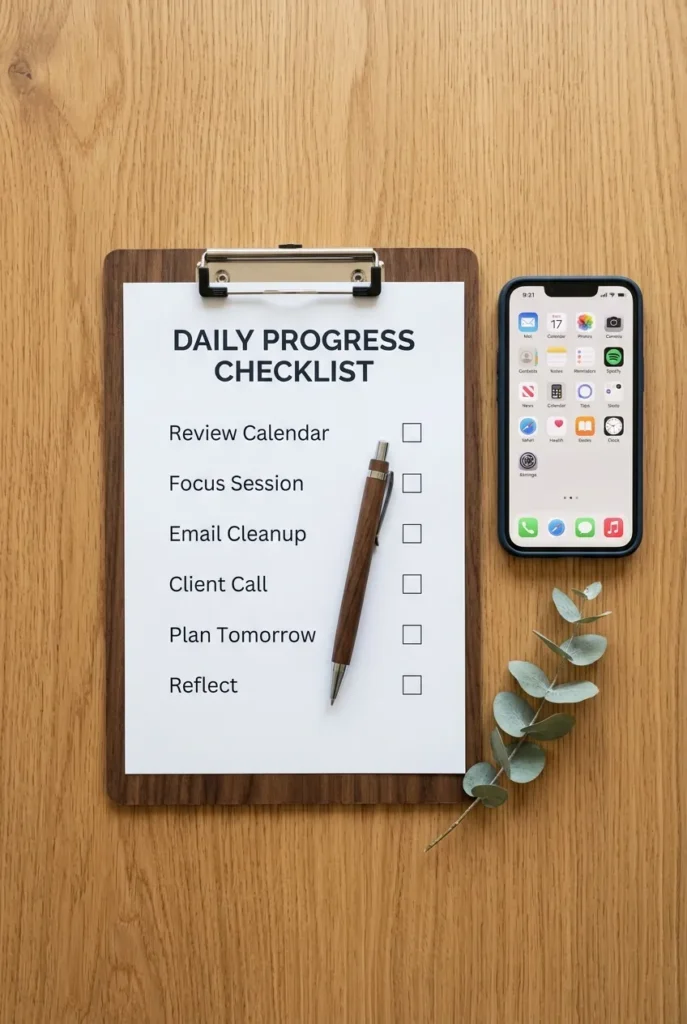
Here’s the framework this whole checklist runs on. The Digital Declutter 3-Layer Sweep breaks your digital life into three layers you clean in order: Screen (what you see and touch every day), Storage (the files, photos, and emails piling up in the background), and Security (the old accounts and permissions quietly holding your data). Do them in that order and each layer makes the next one easier. Screen first gives you a quick win, Storage frees real space, Security protects what’s left.
Screenshot this part. It’s the map for everything below.
Layer 1, Screen: Declutter Your Phone Home Screen First
Start where you look 90 times a day. This is the phone declutter checklist portion, and it’s the fastest to see results.
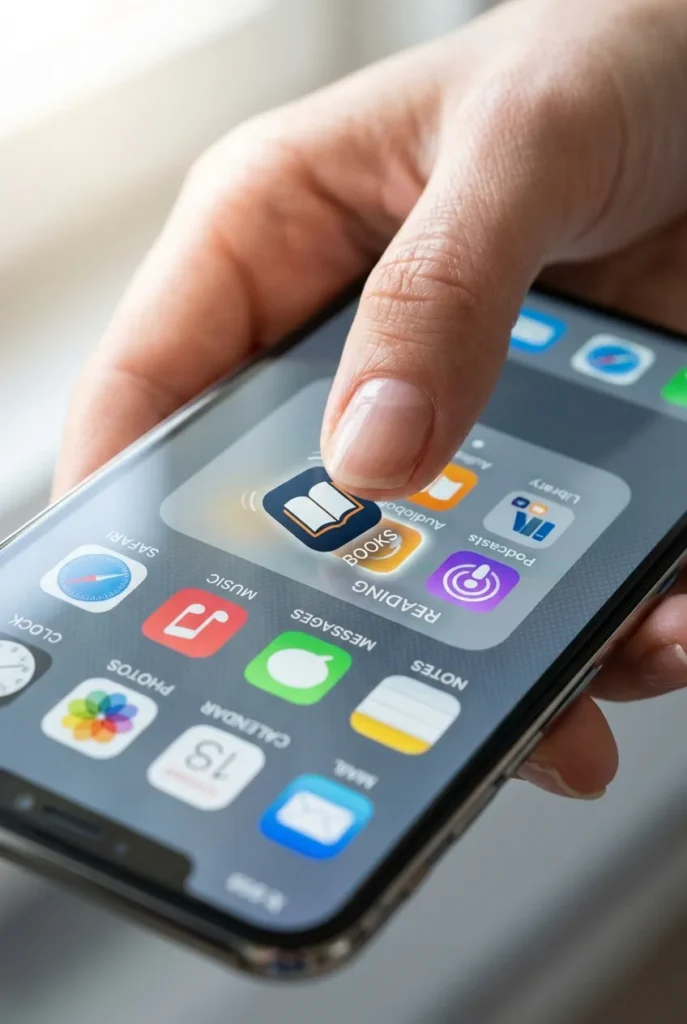
Delete apps you haven’t opened in three months. Be honest about the ones you keep “just in case.” Group the survivors into a few folders by purpose, like Money, Health, and Read Later. Move everything you don’t need daily off the first screen, so page one holds only the handful you actually use. Turn off notifications for anything that isn’t a person or a payment. That single toggle does more for your calm than deleting fifty apps.
If your phone feels slow or full, you can check your iPhone storage in Settings under General, then iPhone Storage, where the Offload Unused Apps recommendation keeps the app’s data but clears the app itself. It’s a soft delete for the “just in case” pile.
The 20-Minute No-Laptop Version
No computer? No problem. Most of this list works thumb-only, and this is the path none of the popular guides map out.
Set a 20-minute timer and go in this order: delete five unused apps, unsubscribe from five emails straight from your inbox, delete every screenshot older than a month, clear your browser tabs, and empty your photos “Recently Deleted” folder. Five quick wins, one short sitting, zero desk required. When you want a repeatable rhythm for the rest of the house too, our Sunday reset routine folds a short digital pass into an easy weekly loop.
Layer 1 Continued: Clear the Screenshot and Photo Pile
Photos are where storage goes to die. We snap a receipt, a meme, a parking spot, and never look again.
Open your camera roll and sort by screenshots first, because those are the easiest to cut without emotion. Delete blurry shots and duplicates next. For the sentimental stuff, don’t agonize; if a photo doesn’t spark an actual memory, let it go. Then empty the Recently Deleted album, or nothing you did counts against your storage yet. A quick monthly photo sweep beats one dreaded annual purge, and honestly, it’s kind of satisfying once you start.

Layer 2, Storage: Tame the Inbox Without Hitting Delete-All
Your inbox isn’t a to-do list, even though it feels like one. Layer 2 is about the stuff quietly eating your storage: email, downloads, and files.
Start with unsubscribe, not delete. Search your inbox for the word “unsubscribe,” then work down the list and actually click it on the senders you never open. Next, create three simple folders (To Do, Waiting, Keep) and stop building a maze of twenty. Archive anything older than a year in one bulk move; you can always search for it later. Then clear your Downloads folder and your desktop, because a screen buried in files is its own kind of noise.
This is a habit, not a one-time event, which is exactly where the one-touch rule helps: handle each email once instead of reopening it five times.

Layer 2 Continued: Files, Downloads, and the Cloud
Files multiply in the dark. Version 2, version 2 final, version 2 final REAL, all sitting in the same folder.
Pick one home for your files, whether that’s iCloud, Google Drive, or Dropbox, and stop scattering copies everywhere. Rename your most important files so future-you can actually search them (dates and plain words beat “doc1”). Delete old versions once the final is safe. Then back up what matters to the cloud plus one other place, so a dead laptop is an annoyance and not a disaster. If you like a room-by-room mindset, treat each folder like a drawer: one purpose, clearly labeled, nothing random tossed in.

Layer 2 Continued: Browser Tabs and Bookmarks
Twelve open tabs is not a filing system. It’s a slow-motion panic you scroll past every time you unlock your laptop.
Close every tab you can’t name a reason for right now. Turn the “read later” tabs into bookmarks, then sort those bookmarks into a few folders so the bar isn’t a wall of tiny icons. Clear your cache and old browsing history while you’re in there. Your browser will feel quicker, and your brain will too.

Layer 3, Security: Close Old Accounts and Lock Down Data
This is the pass almost every lifestyle guide skips, and it’s the one that actually protects you. Old accounts you forgot about are still holding your name, card, and email somewhere.
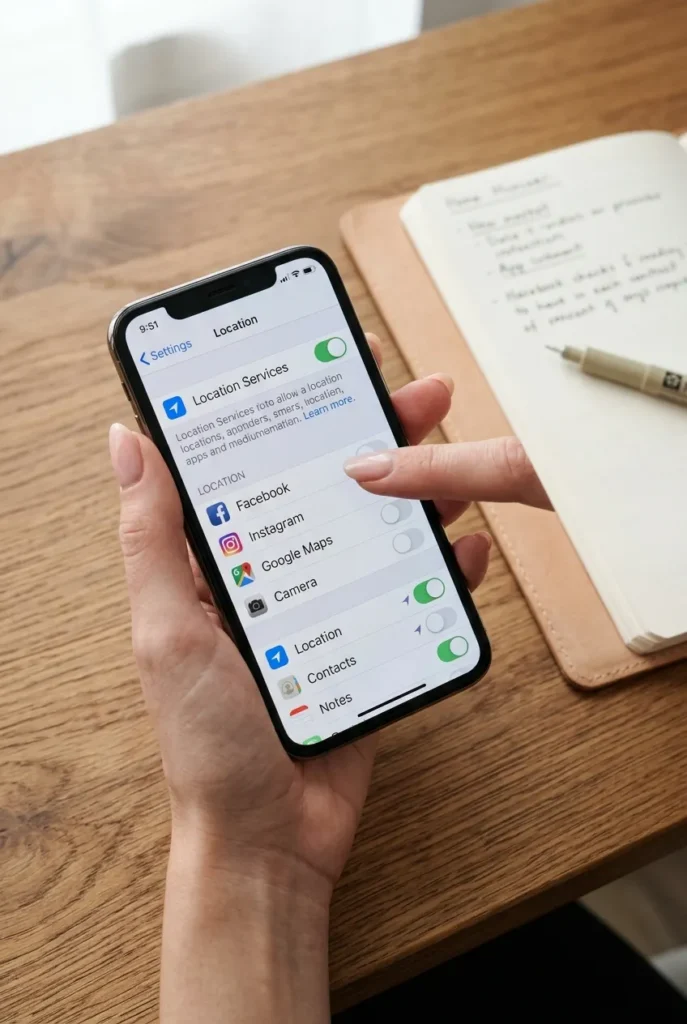
List the accounts you no longer use and close them, not just log out. Move your passwords into a password manager so you can stop reusing the same three. Review app permissions and turn off location, camera, and mic for anything that doesn’t truly need them. It’s worth understanding how apps collect your data before you hand over another permission, and clearing cookies and browsing history limits some of that tracking. A quiet, private digital life is a decluttered one too.
Your Maintenance Cadence: Daily, Weekly, Quarterly
Here’s the part that keeps you from starting over every season. Every task on this list belongs to a rhythm, not a one-off cleanup.
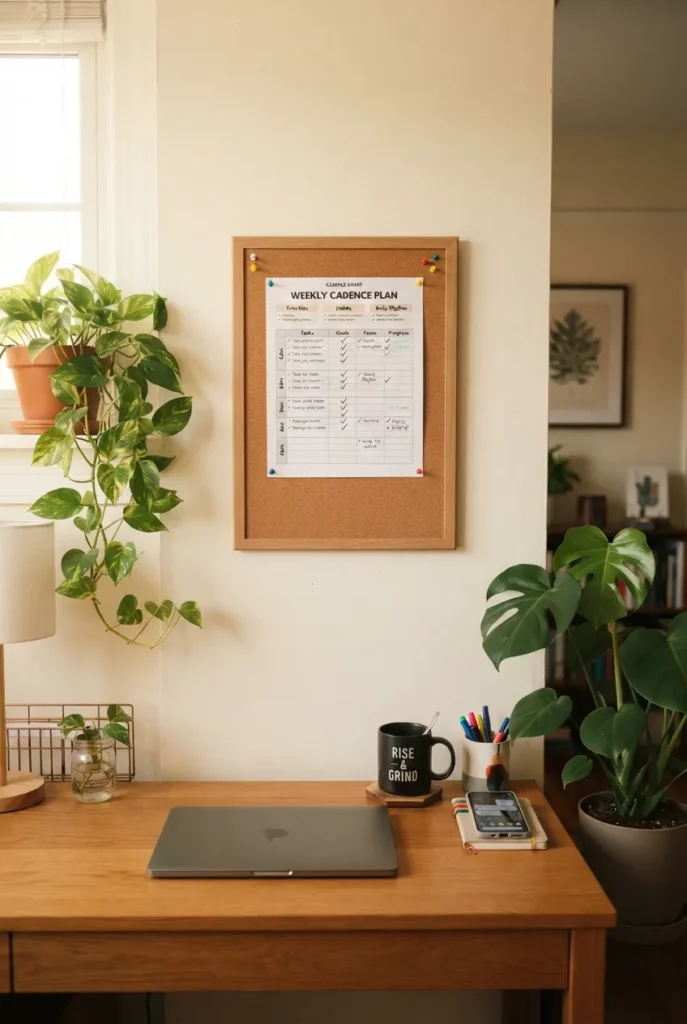
Daily takes two minutes: clear notifications, close tabs, delete the day’s junk screenshots. Weekly takes fifteen: unsubscribe from a few senders, sort new photos, empty Downloads. Quarterly is the big pass: close old accounts, back everything up, run the full 3-Layer Sweep again. Print the cadence and stick it near your desk. When the same brain that keeps a home tidy runs on repeat, the phone follows.
| Layer | Daily (2 min) | Weekly (15 min) | Quarterly (1 hr) |
|---|---|---|---|
| Screen | Clear notifications, close tabs | Sort photos, delete screenshots | Redo home screen, cut apps |
| Storage | Delete junk emails | Unsubscribe 5, empty Downloads | Archive old files, back up |
| Security | Log out of shared devices | Check one app’s permissions | Close old accounts, update passwords |
Grab the Free Printable Digital Declutter Checklist
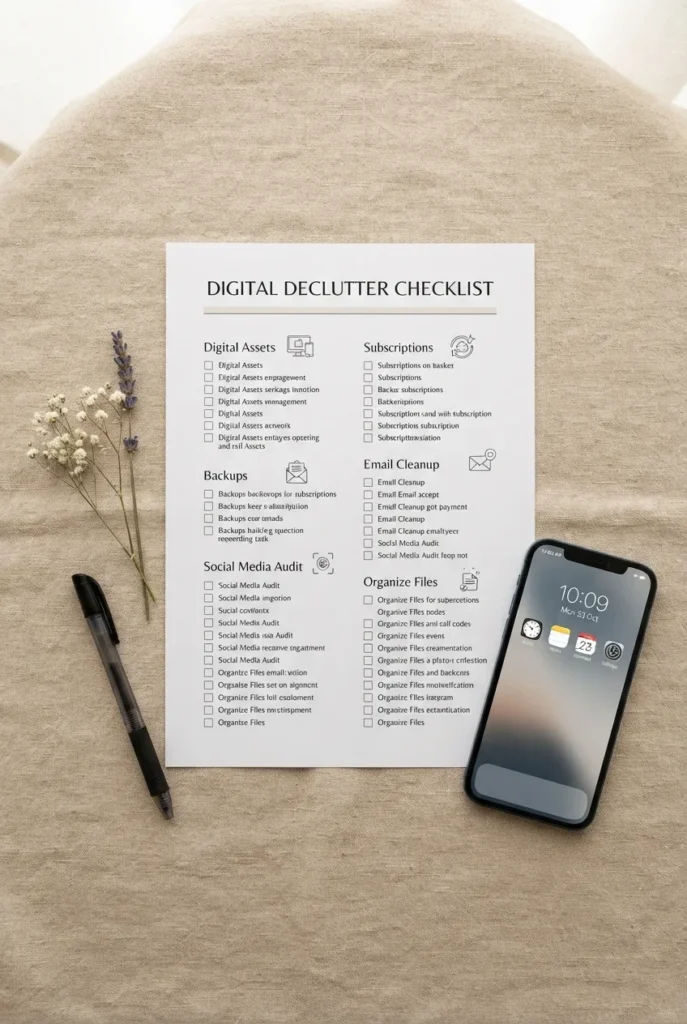
Everything above fits on one page. The free printable digital declutter checklist is a US Letter (8.5 x 11) PDF with checkboxes for all three layers plus the daily, weekly, and quarterly cadence, so you can tick as you go and pin it up after.
Print it in black and white to save ink, or laminate it and use a dry-erase marker to reuse it every quarter.
Frequently Asked Questions
Where do I start with a digital declutter when I’m overwhelmed?
Start with your phone home screen, because you see it constantly and the win is instant. Delete five unused apps and turn off non-essential notifications. That two-minute burst usually creates enough momentum to keep going.
Is there a free digital declutter checklist template or PDF?
Yes. The free printable above is a US Letter PDF template with checkboxes for the Screen, Storage, and Security layers, plus a daily, weekly, and quarterly cadence you can reuse.
What’s the best way to declutter my phone specifically?
Delete apps unused for three months, group the rest into a few labeled folders, keep only daily-use apps on page one, and offload large apps you rarely open. Then clear screenshots and duplicate photos.
Is there a digital declutter app that does it for me?
Some cleanup apps flag duplicates and large files, but your phone’s built-in storage tools already show what’s eating space, and manual review protects the photos and files that actually matter. A checklist beats blindly auto-deleting.
How often should I do a digital declutter?
Run a two-minute pass daily, a fifteen-minute pass weekly, and the full 3-Layer Sweep quarterly. That cadence keeps clutter from ever building back to overwhelming.
How is a digital declutter challenge different from a checklist?
A challenge spreads tasks across set days (like a 14-day or 30-day plan) for motivation, while a checklist lets you work at your own pace. You can turn this checklist into a challenge by doing one section a day.
Ready to Clear the Invisible Clutter?
The stuff you can’t see is still weighing on you, and now you have the exact order to clear it: Screen, Storage, Security, on repeat. Start with just your phone tonight, print the checklist, and let the small wins stack up. Save this to your organizing board so it’s waiting the next time your camera roll hits four digits, and tell us in the comments which layer you’re tackling first.


